
Shared Services Account Guide: Sign-In, Billing, Subscriptions, Projects and Support
This guide explains how to use your Shared Services customer account from sign-in through day-to-day self-service. You will learn where to update account and billing details, review orders and invoices, manage subscriptions, follow projects, send project messages, and contact support.
About the examples: every screenshot and animation uses the synthetic “Alex Morgan (Demo)” account. The names, addresses, references, services, prices and project details shown below are documentation examples only; no real customer information or payment method is displayed.
Quick links
| What you want to do | Where to go |
|---|---|
| Sign in to your customer account | secure.shared-services.co/login |
| Open your account overview | Account Overview |
| Update profile, billing, login or security details | Account Settings |
| Review subscriptions | My Subscriptions |
| Follow a project or open a project request | My Projects |
| Review invoices and orders | Invoices / Orders |
| Report an account, billing or technical problem | Submit a support ticket |
Customer-account links require you to be signed in. If your session has expired, you will be returned to the login page first.
1. Sign in to the secure customer portal
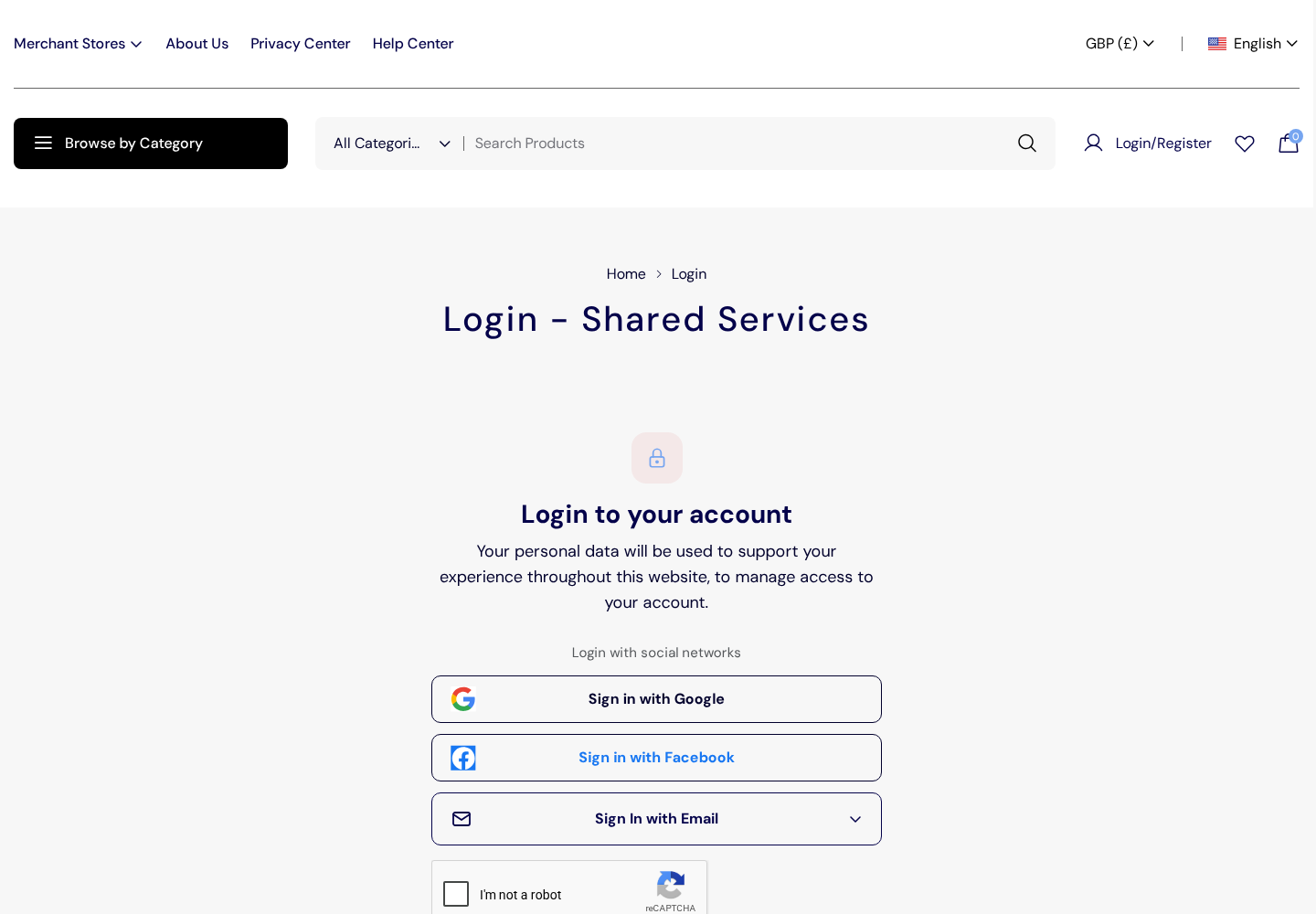
- Open secure.shared-services.co/login. Check that the address bar shows secure.shared-services.co before entering any details.
- Choose the sign-in method associated with your account: Google, Facebook, or Sign In with Email.
- For email sign-in, expand Sign In with Email, enter the email address and password connected to the account, and complete the anti-bot check if it is shown.
- After successful sign-in, open My Account. You will arrive at the account overview.
If you cannot sign in
- Confirm that you are using the exact email address that received your Shared Services account invitation or order confirmation.
- If you normally use Google or Facebook, use the same provider again; a provider login and an email/password login are not always interchangeable.
- For email sign-in, use the password-reset option in the expanded email panel if you have forgotten your password.
- Complete the CAPTCHA in the browser yourself. Support will never ask you to send a CAPTCHA response, password, one-time code or recovery code.
- If access still fails, submit a ticket at support.shared-services.co/tickets/create and choose the closest account/access category.
2. Understand the account overview
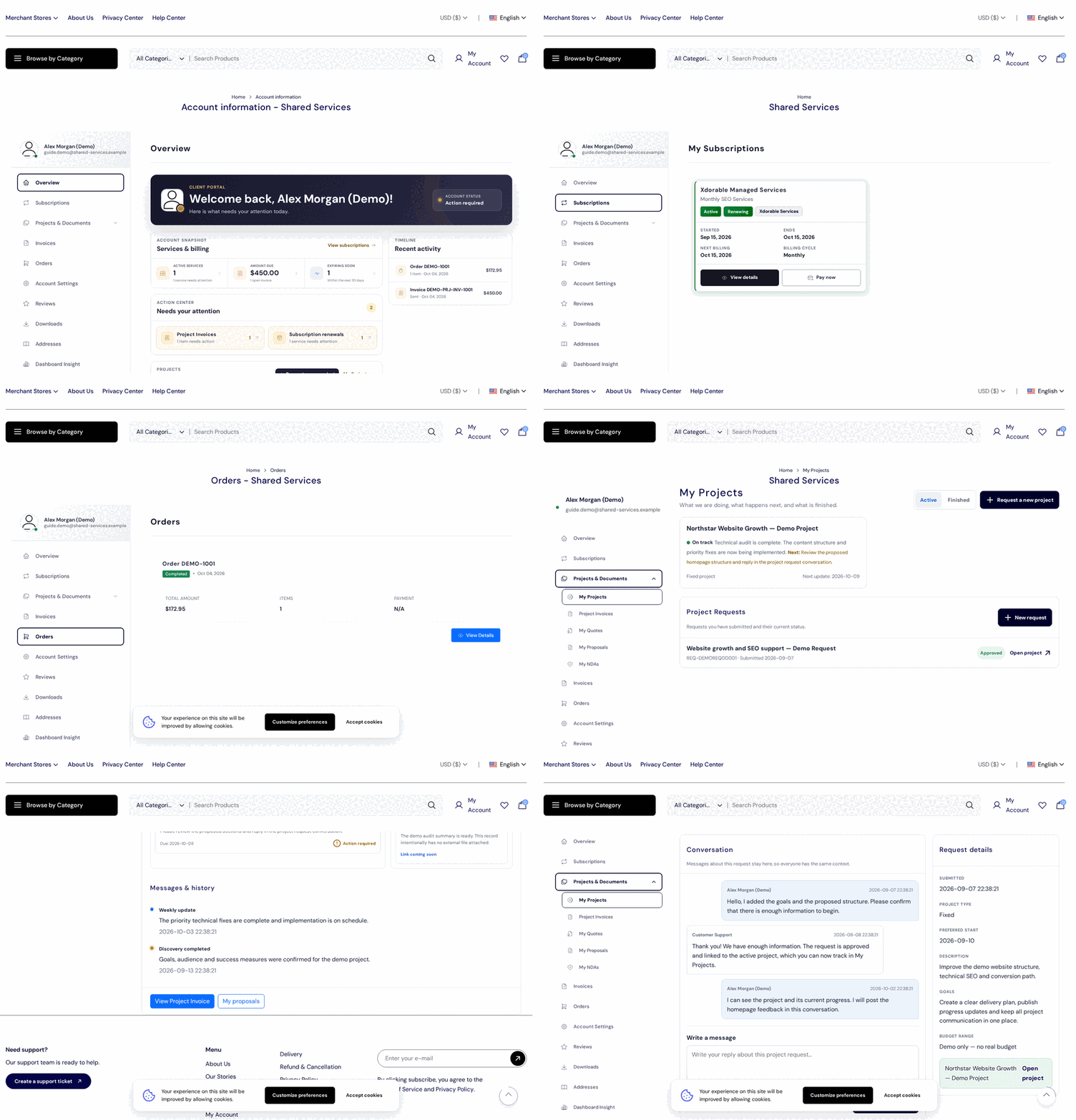
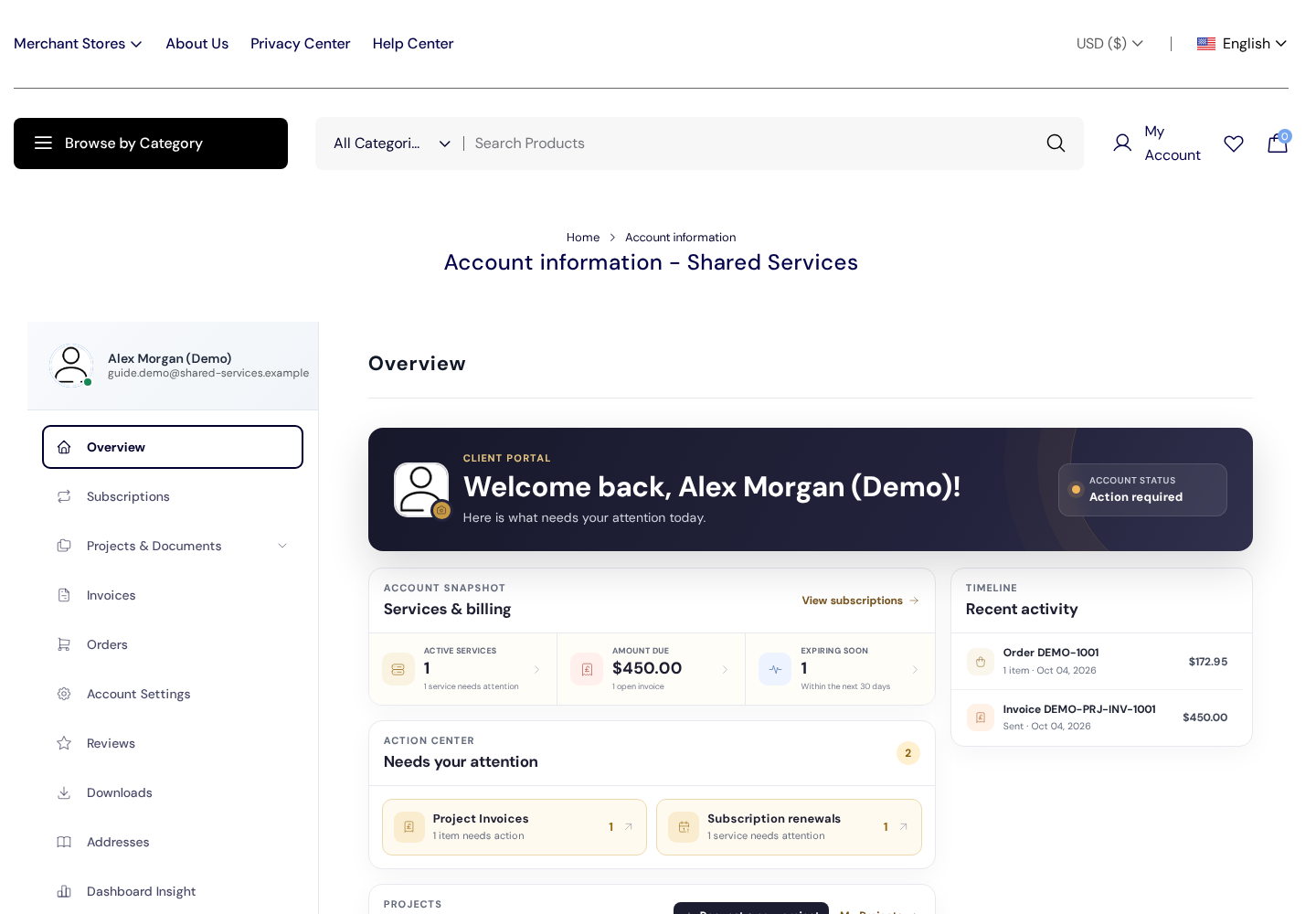
The overview is your starting point. It summarises services and billing, items that need attention, recent activity, active projects and project requests. The left navigation is the fastest way to move between self-service areas.
On the overview:
- Services & billing shows active services, the amount currently due and services approaching an end or renewal date.
- Needs your attention links to outstanding project invoices, subscription renewals or other customer actions.
- Recent activity lists the latest orders, invoices and related account events.
- Projects and Project Requests show delivery status and provide the route to project communication.
Amounts and dates are summaries. Open the underlying subscription, invoice, order or project before taking action so you can verify the reference, status and billing period.
3. Manage your profile, billing details and account security
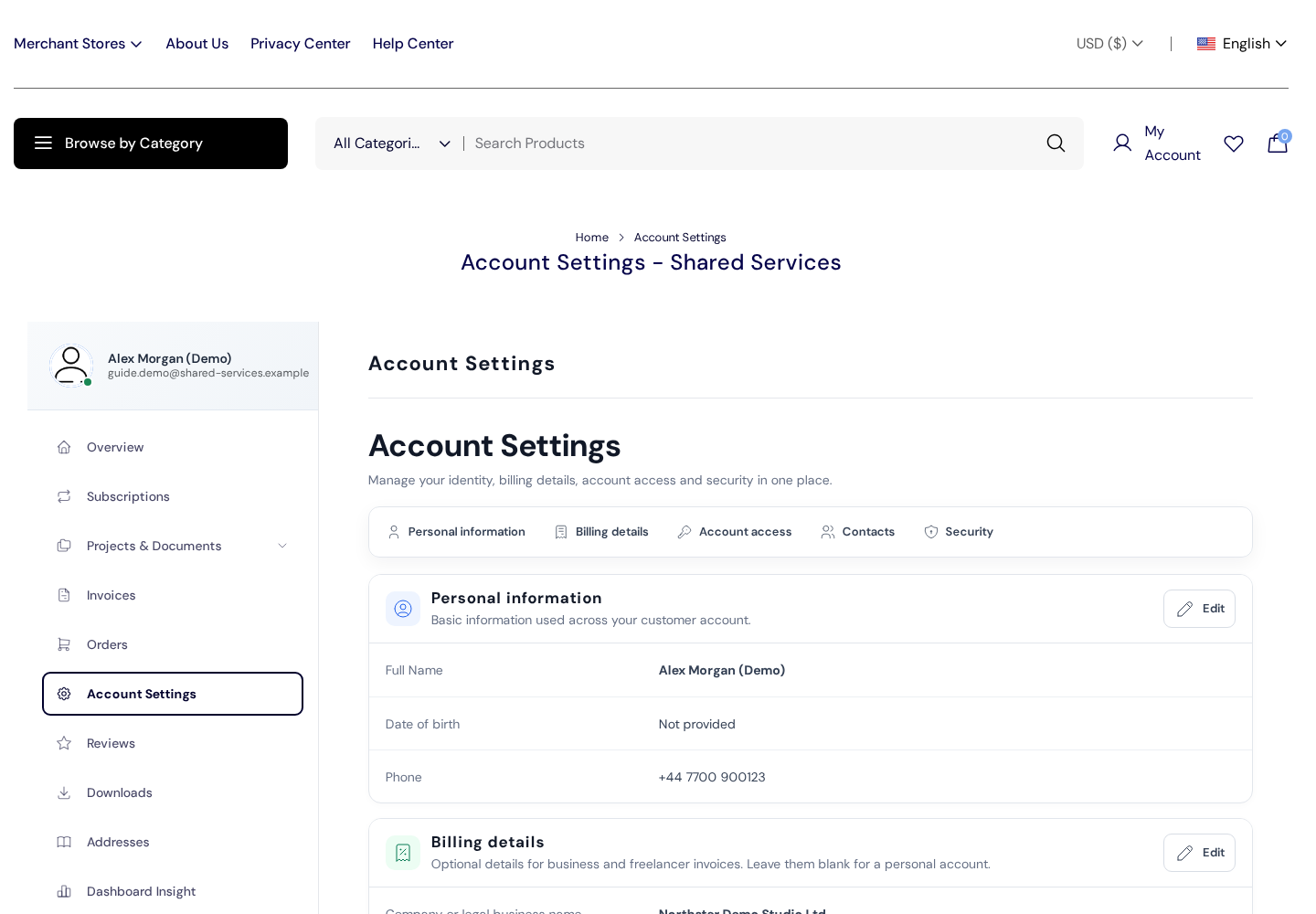
Choose Account Settings from the left navigation. The page is divided into Personal information, Billing details, Account access, Contacts and Security.
Personal information
Use Edit to update your name, date of birth and phone number. Keep your phone number current in case support needs to verify an account-related request.
Billing details
Use the Billing details section for a company or legal name, company address, tax identifier and billing email. You can also control whether business invoice details are used by default. Review these fields before requesting a corrected invoice; changes normally affect future documents and do not silently rewrite already-issued invoices.
Account access
The primary account email is both an identity and a communication address. Changing it requires verification and may require your current password or confirmation through a connected social provider. Finish the verification step before assuming the change is active.
Contacts
Add and maintain the people associated with the customer account. A contact can be marked as the default contact or invoice contact. This is useful when operational and billing communication should go to different people. Contact records do not expose your password and should not be used as a substitute for sharing your own login.
Security
- Use a unique password that you do not reuse on another service.
- Change the password immediately if you believe it has been exposed.
- Do not share passwords, one-time codes, recovery codes or social-login approvals with support.
- Sign out when using a shared device. Use the account menu and select Logout.
- The account-deletion control is permanent. Download any documents you need and contact support about active services before using it.
4. Review and manage subscriptions
Open Subscriptions in the left navigation. Each card shows the service and plan, current service status, renewal status, start/end dates, next billing date and billing cycle.
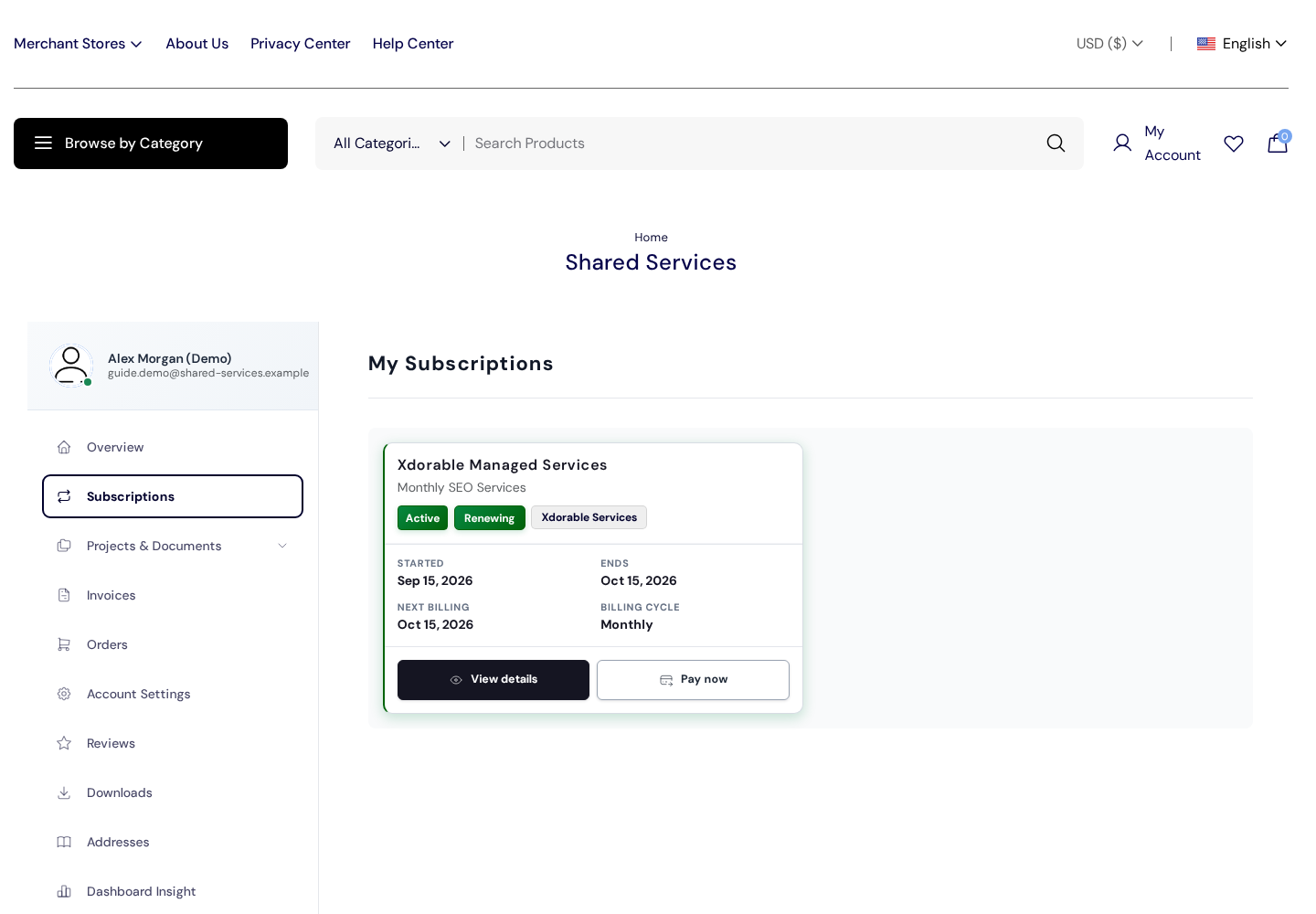
Select View details to open the full subscription. The detail page contains:
- the subscription reference, service, plan and category;
- service status and renewal status;
- start date, end date, next billing date and billing cycle;
- renewal mode and payment method;
- service-specific details or plan capacity, when available;
- the subscription’s invoice history and a View invoice action.
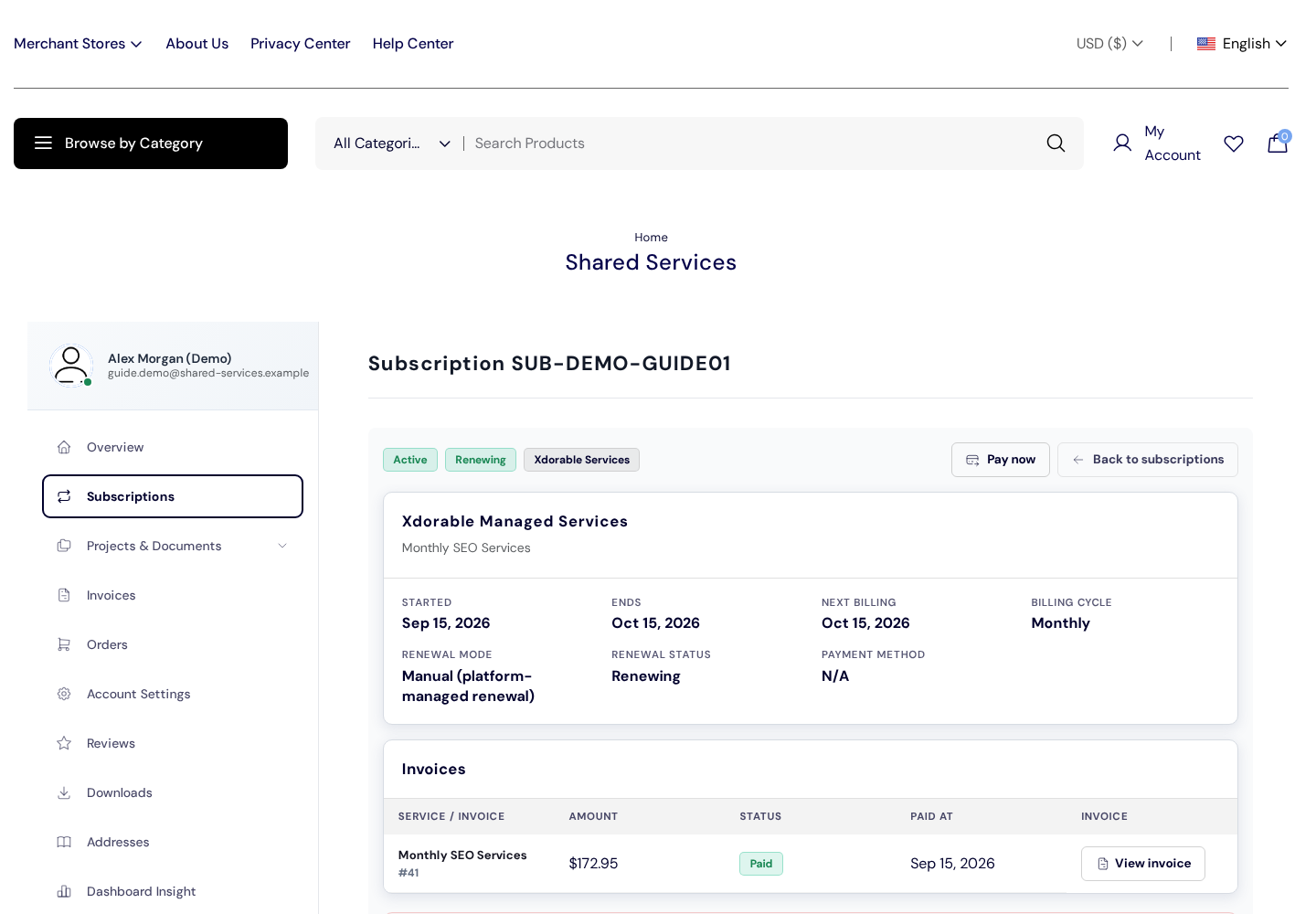
Subscription actions
- Pay now appears when an eligible subscription payment is due.
- Manage payments appears when the connected payment provider supports a customer billing portal.
- Change plan appears only for services configured to allow customer plan changes. Read the effective-date and charge summary before confirming.
- A service-specific Login button may appear when the subscription includes a separate secure service area.
- Cancel renewal stops the next renewal and future automatic charges. The service remains active until the end of the current paid period; the action does not cancel or refund payments already made.
Buttons vary by service, status and payment provider. If an action is not displayed, do not create a second order to work around it. Open a support ticket and include the subscription reference.
5. Find orders and invoices
Orders and Invoices are related but serve different purposes:
- An order records what was requested or purchased, the item count, total and fulfilment/payment status.
- An invoice is the billing document for an amount. Use it for your accounting records and payment review.
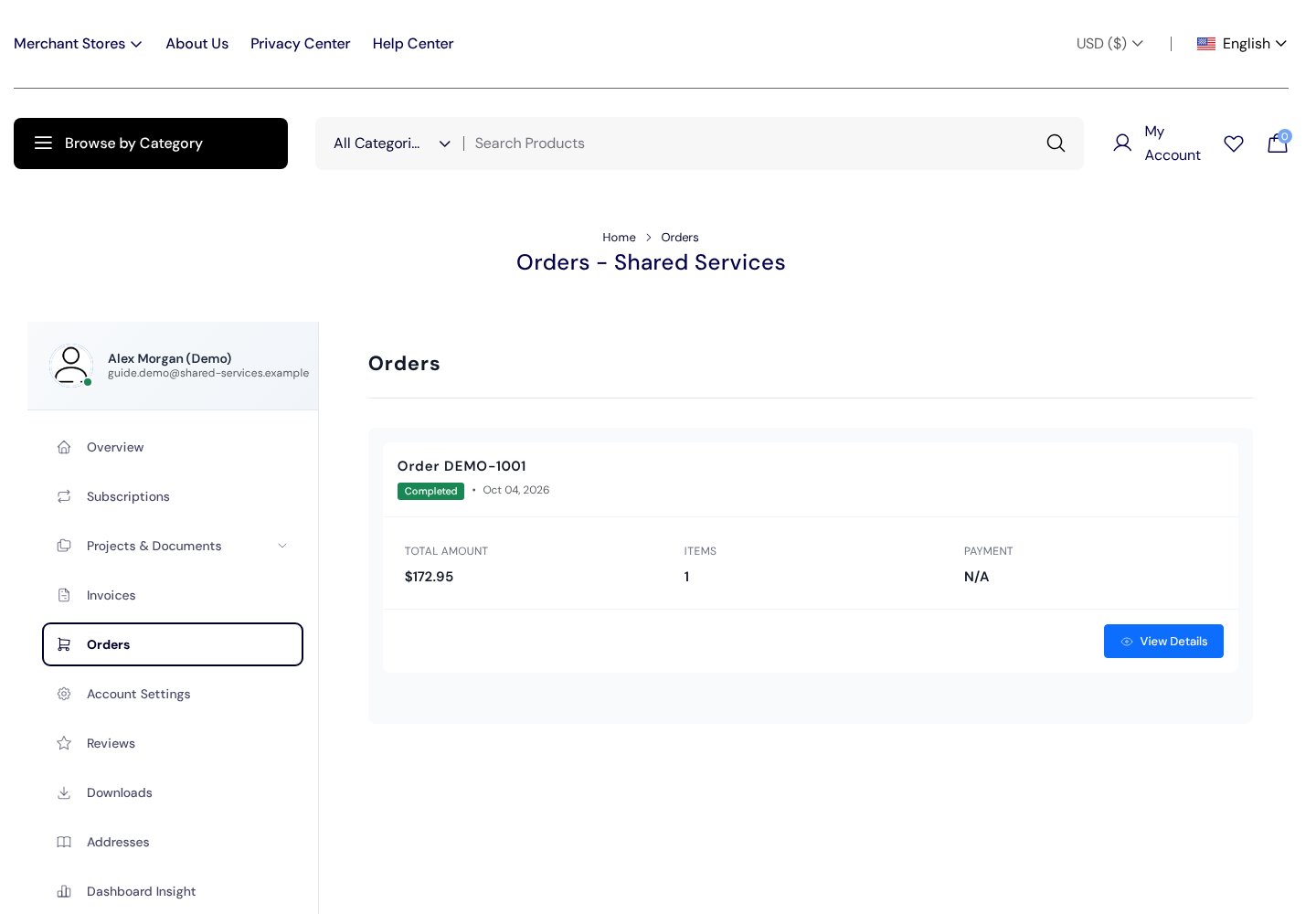
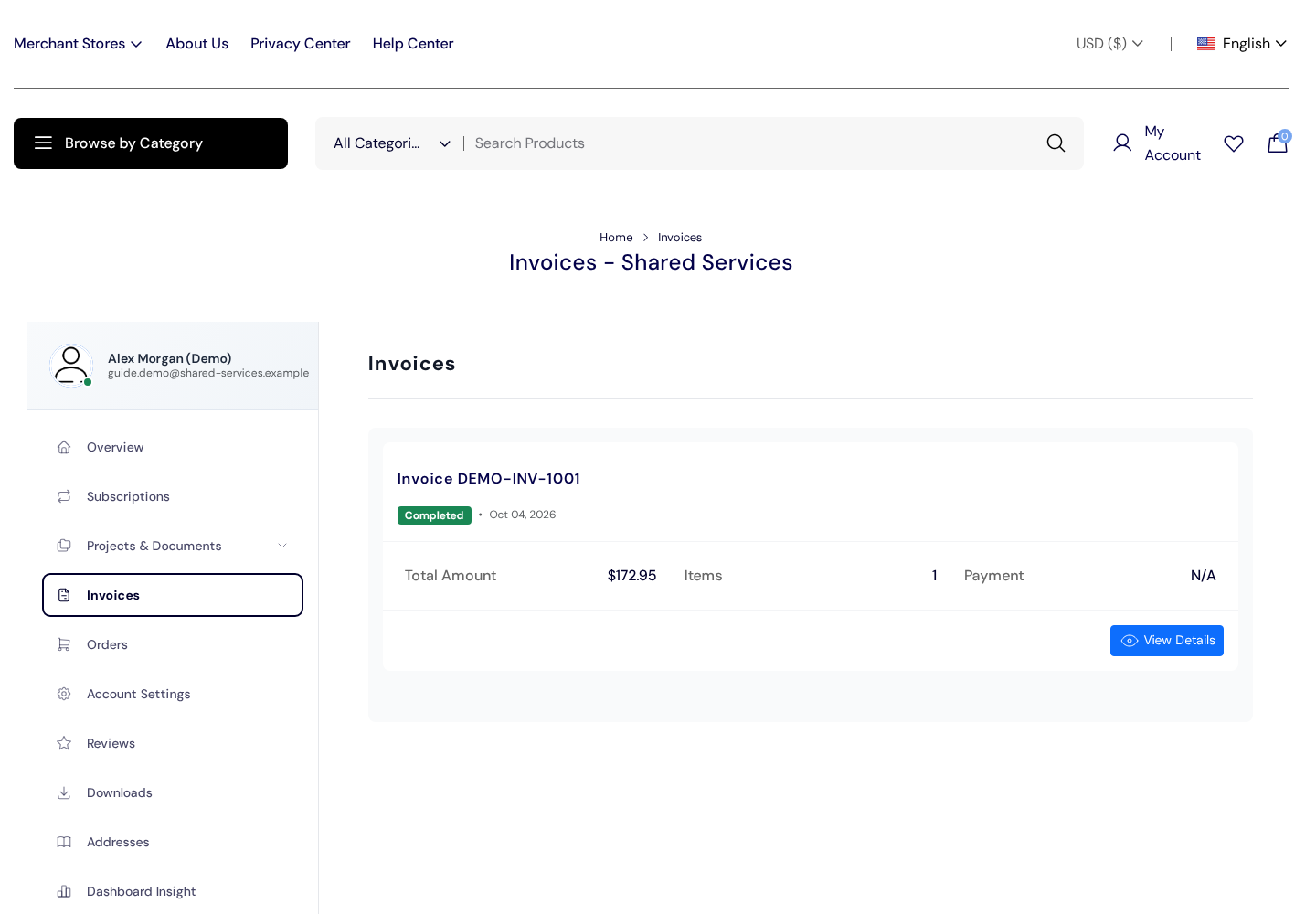
To review a document, open View Details. Verify the reference, customer/billing details, line items, currency, total and status. Use the available print or download action on the invoice detail page for your records. If a paid invoice still appears outstanding, do not pay it twice; submit a ticket with the invoice reference and payment date.
Project billing documents may also appear under Projects & Documents → Project Invoices. Subscription invoices can be opened directly from the relevant subscription.
6. Track projects and submit new project requests
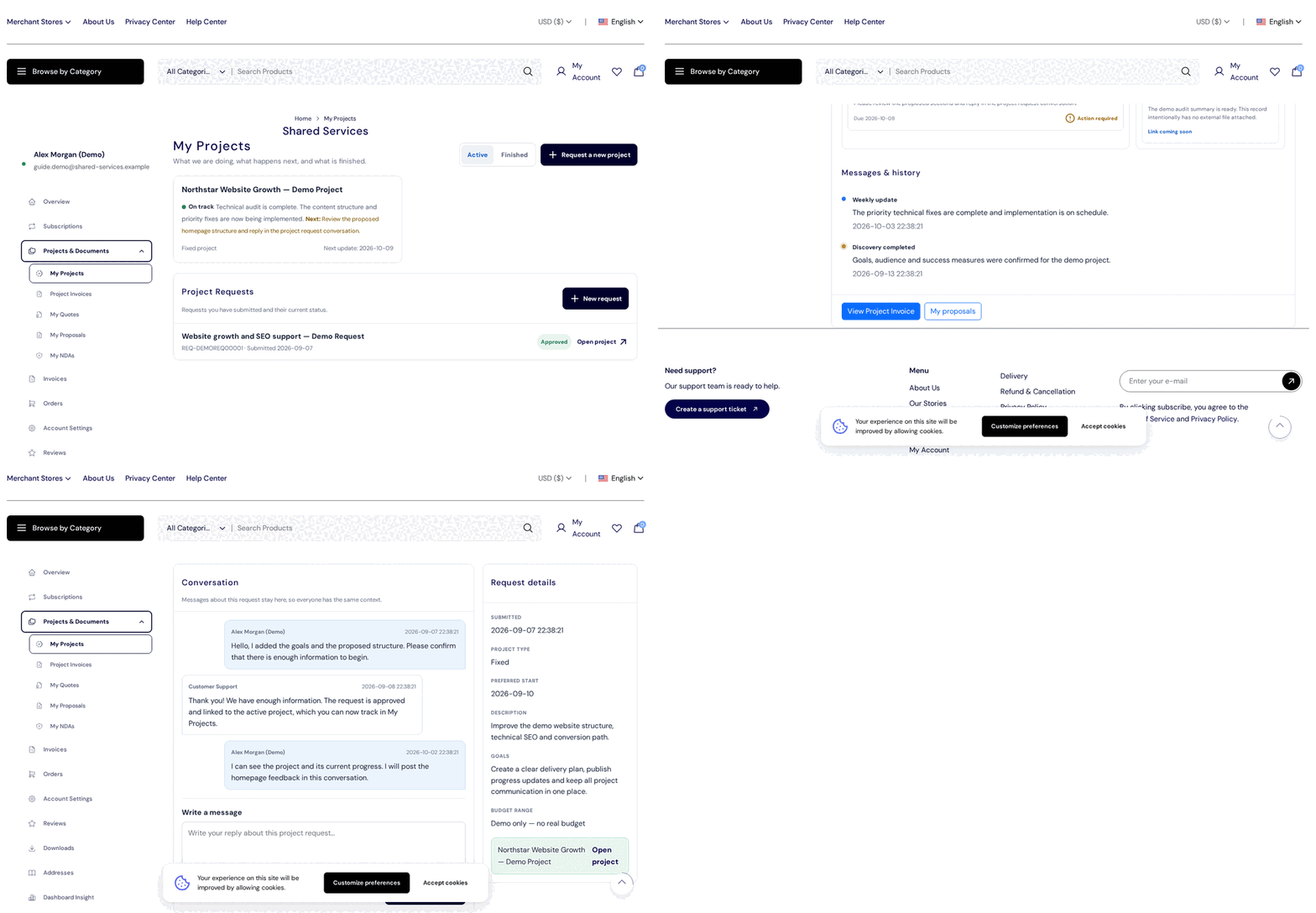
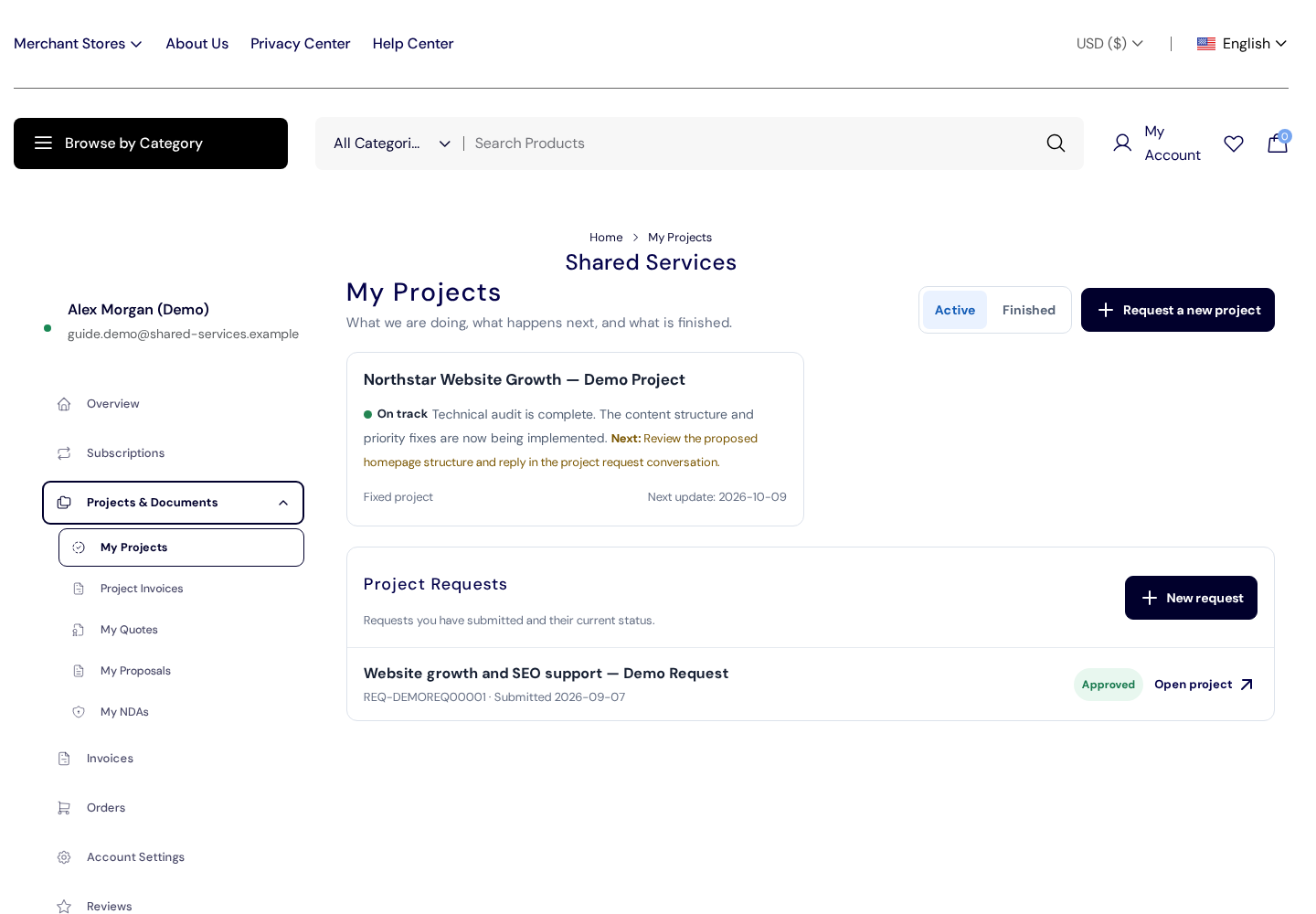
Open Projects & Documents → My Projects. The Active and Finished filters separate work in progress from completed delivery.
Track an active project
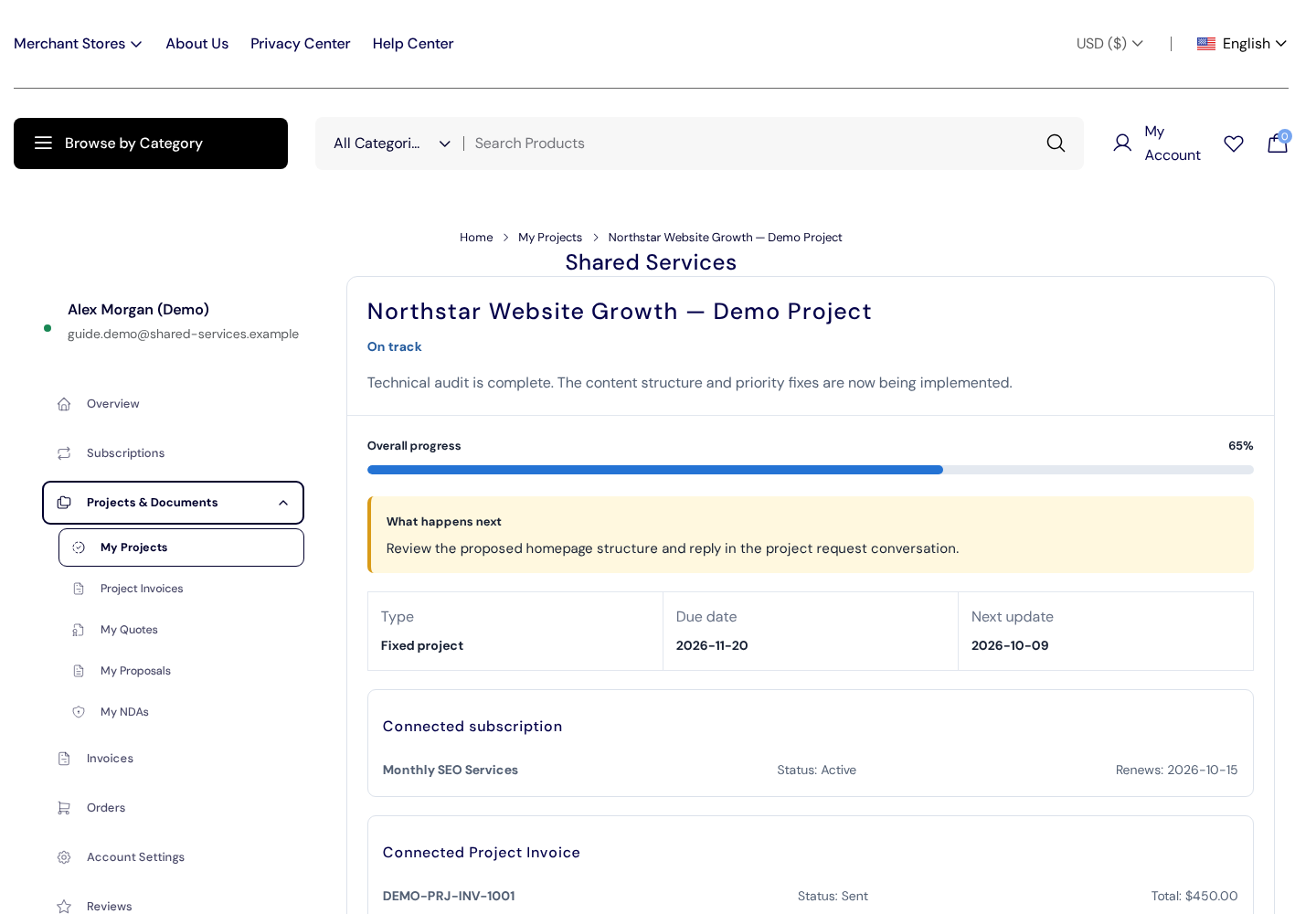
- Select the project card.
- Read the current status and summary.
- Check Overall progress, What happens next, the due date and the next-update date.
- Review any connected subscription and project invoice.
- Scroll to tasks, resources, reports and Messages & history for the latest delivery updates.
The project page’s Messages & history area is an update timeline. It records delivery messages and milestones, but it is not the reply box.
Request a new project
Select Request a new project or New request from My Projects. Provide a clear title, project type, description, goals, preferred start date and budget range where requested. Add enough context for the team to understand the desired outcome. After submission, the request appears under Project Requests with its current status.
7. Send messages about a project
Project replies belong in the Project Request conversation. Keeping them there preserves the full decision history for you and the delivery team.
- Open Projects & Documents → My Projects.
- Scroll to Project Requests and open the request connected to your project.
- Review the conversation and request details.
- Use Write a message, add your update or question, and submit it.
- Return to the same conversation for replies. Include links or exact document names when referring to files.
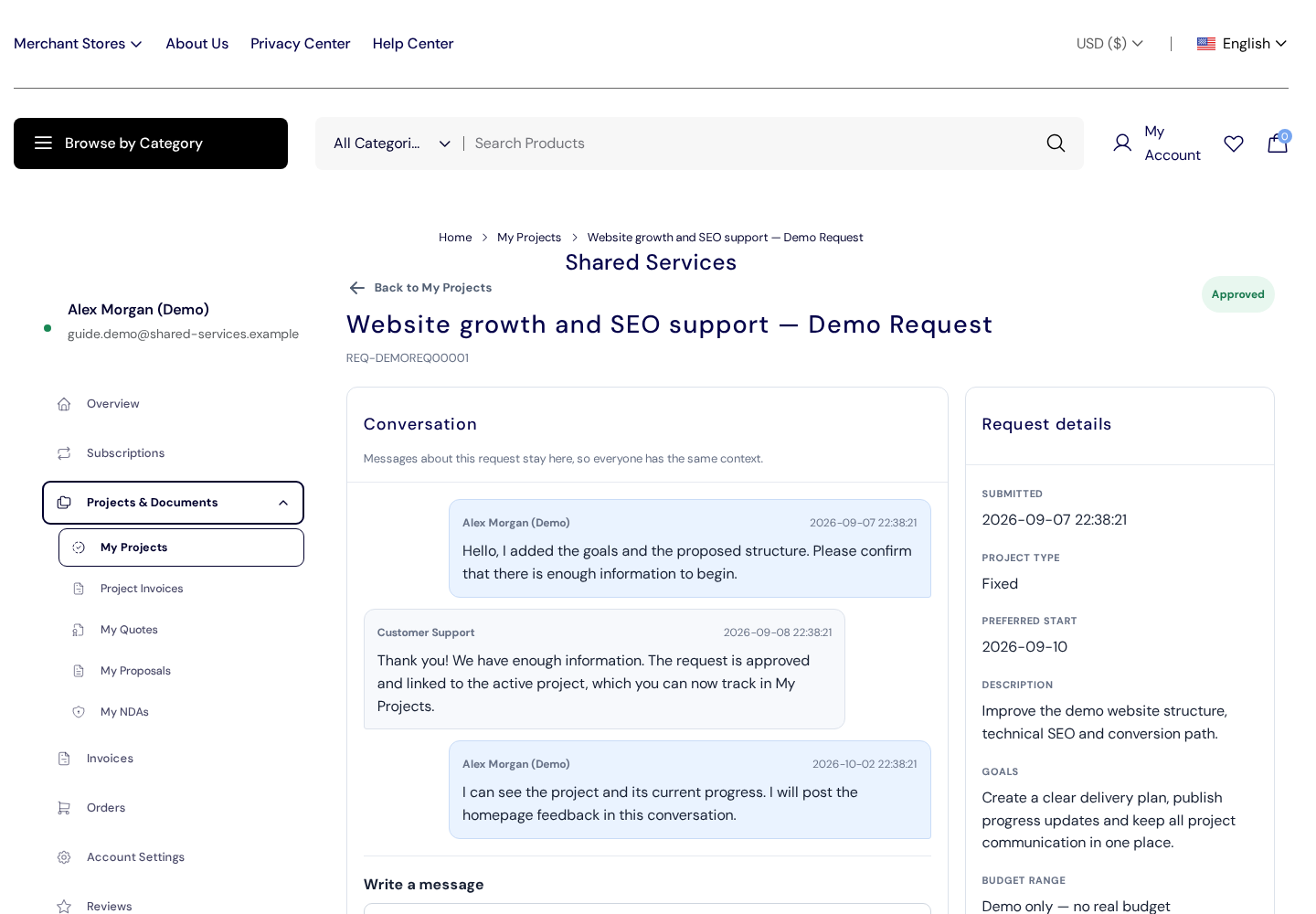
For the fastest response, include the project or request reference, the decision you need, any deadline, and a concise description of what changed. Do not place passwords, private keys or payment-card details in a project message.
8. Report a problem or ask for help
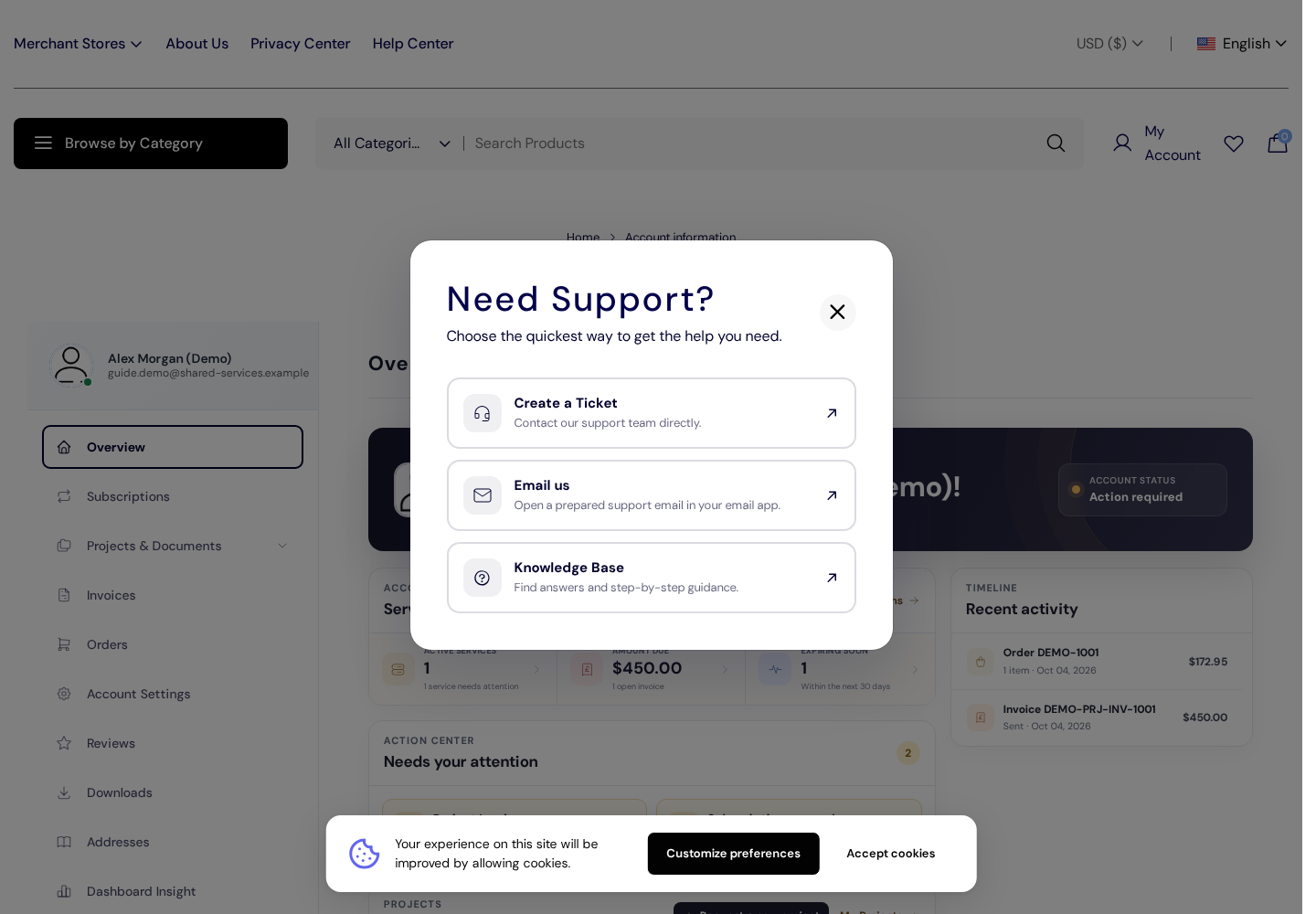
Use a support ticket for account access, billing discrepancies, portal errors or a problem that is not part of normal project delivery. From the secure-account overview, open Need Support? and choose:
- Create a Ticket for an issue that needs investigation and tracking;
- Email us to open a prepared support email in your mail application;
- Knowledge Base for self-service instructions.
You can also go directly to support.shared-services.co/tickets/create. The Support Portal uses its own support-account session, so you may be asked to sign in or create a support account even when you are already signed in at secure.shared-services.co. Use your normal business email so the support team can match the request to your customer records.
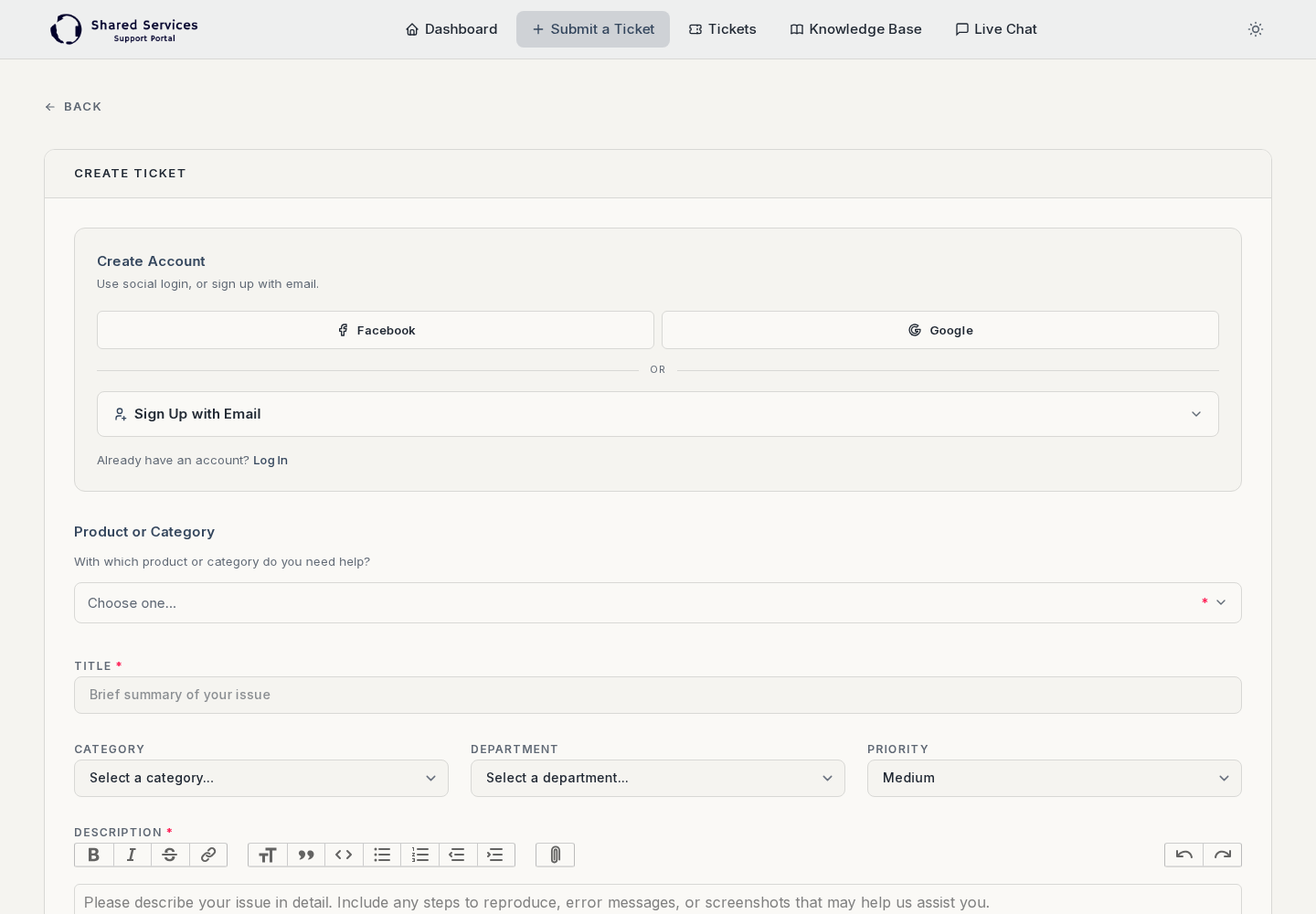
What to include in a ticket
- a short, specific title;
- the affected order, invoice, subscription, project or request reference;
- what you expected to happen and what actually happened;
- the steps that reproduce the problem;
- the date/time and any exact error message;
- a screenshot with unrelated personal or confidential information removed;
- the urgency and any genuine business deadline.
Never include a password, one-time code, recovery code, full payment-card number, private key or secret token. Support may ask for additional non-secret context in the ticket thread.
Project message or support ticket?
| Situation | Best channel |
|---|---|
| Feedback, approval, a delivery question or a change to an active project | The linked Project Request conversation |
| Cannot sign in, portal page fails, account details cannot be changed | Support ticket |
| Invoice mismatch, payment status problem or missing billing document | Support ticket with the invoice/order reference |
| Question about renewal timing, plan availability or an unavailable subscription action | Support ticket with the subscription reference |
Recommended account routine
- Check Overview for new activity and items needing attention.
- Review Subscriptions before the displayed next-billing or end date.
- Open Invoices and Orders when reconciling a charge or purchase.
- Check My Projects for the next action and next-update date.
- Reply in the linked Project Request conversation so project decisions remain together.
- Keep Account Settings, billing information and contacts current.
- Use a support ticket when an issue needs investigation or an audit trail.
Tip: keep the reference shown on each subscription, order, invoice, project or request. It is the fastest way for the team to locate the correct record without exposing unnecessary personal information.